
Macro's System
Now we've reached a very important matter, this is something that will make you faster inside the olympiad, especially when you need to use augment item skills or change your cothing set. Macros are a sequence of automatic actions that allows us to make something that would need like 6 isolated actions in just one click, and that's the reason they are so important. To open the macro's window you can just press the buttons Alt + R.
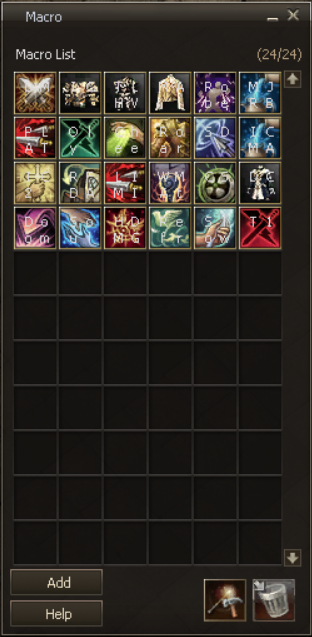
As you can see in the image, there is a limit of 24 macros, and depending on your class, this limit might be low because you might need more of them, but for any class you need to learn how to use this if you want to be a strong olympiad warrior. The most common macros are for equipping clothing sets and to use augments, allowing us to do these actions faster, earning this way a little bit of advantage over the opponent.
Creating Macros

To create a new macro, click on the Add button on the left downside from the window, and in the Help button you can see some informations about macros that the own game provides. When adding a new macro, the following window will open:
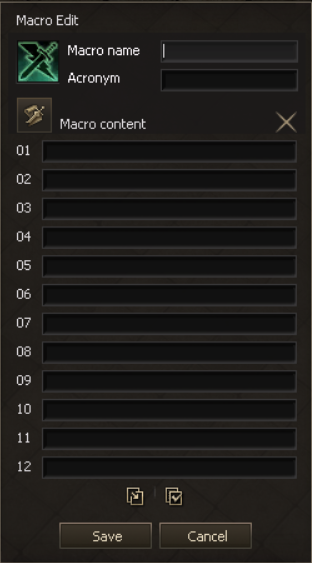
This window changes a little according to the server or your interface, but first you must choose a macro's name, and the acronym are four letters that will be shown with the macro's icon to better identify your macros. You can also change the macro's icon in that little button bellow the macro's image, or there will be some arrows just bellow it.
Now you need to put some actions in the macro to save it, and as you can see, there's is also a limit of 12 actions in one macro, but we try not to use that much, because they might not work very well with too many actions. Check the possible actions in the list bellow:
- /useskill skillname: Uses the referred skill. If you drag a skill from Alt + K to the macro’s action it will automatically write this command.
- /useskillforce skillname: Uses the referred skill as if you are pressing the Ctrl button.
- /useskillstand skillname: Uses the referred skill as as if you are pressing the Shift button.
- /useshortcut 2 6: Uses the referred shortcut from your skill’s bar. The first number refers to the bar and the second one to the location on the skill bar. If you drag a shortcut from your skill’s bar to the macro’s action it will automatically write this command.
- /useshortcutforce 2 6: Uses the referred shortcut from your skill’s bar as if you are pressing the Ctrl Button. The first number refers to the bar and the second one to the location on the skill bar.
- /useshortcutstand 2 6: Uses the referred shortcut from your skill’s bar as if you are pressing the Shift Button. The first number refers to the bar and the second one to the location on the skill bar.
- /target nickname: Takes the referred target.
- /target %self: Takes your own target.
- /target %pet: Takes your pet or summon’s target.
- /target %party6: Takes the target from the referred position party member.
Note that there is no command to equip an item directly from your inventory, so to create clothing sets macros you need to drag all the set parts to your skill bar, and then use the shortcut command, this way a clothing set macro stays as the following image:
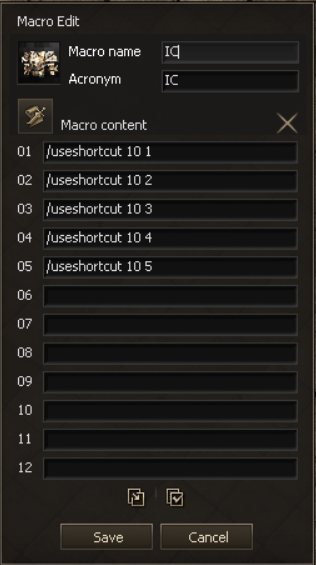
It's important to leave the chest part on the last action for the macro to work correctly. Now for an active augment macro, you need to drag only the augmented weapon to the skill bar, and then you can put the useskill command to use the active augment skill, like in the next image.
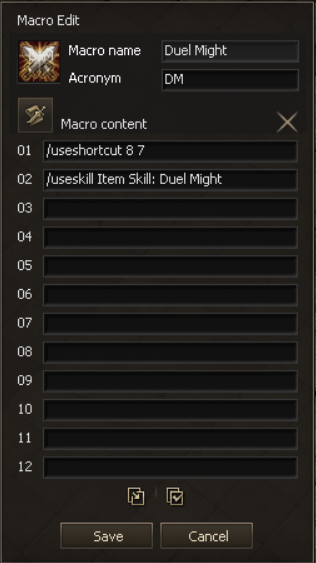
In some servers a few active augments might need to be used with the shortcut command, I don't know the reason they don't work with the useskill command, but pay attention to that. Also, you can't add an existing macro inside another macro, it won't work.
Editing and Deleting Macros

If you want to edit an existing macro, you must drag the respective macro to the left button from the image above, located in the right downside from the macros window, and if you want to delete it, drag it to the button just at his side that looks like bin. The deleted macro won't count on your maximum limit anymore, so you can delete as many macros you want without worries.
Precautions For Using Macros